
Client Quickstart Guide
The Administer Client API works a little different than the server - but it's still straightforward.
Unlike the server, there are no standard formats or initializers at the moment. At runtime, your script or frame is placed inside PlayerGui.AdministerMainPanel.Main.
However, the location of an app's main frame is not static at any point. Apps may be pulled and relocated for the app drawer animation (relocated to Main.AppDrawer.AppDrawerCover), popped out apps (relocated to AdministerMainPanel), and more. should not be using relative locations for anything (Administer modules, template locations, etc).
With that being said, the proper way to require Administer modules is like so:
--// Get the client
local AdministerClient = game.Players.LocalPlayer.PlayerGui:FindFirstChild("AdministerMainPanel", true).Client

--// Now you can freely access modules and libraries
local Shimmer = require(AdministerClient.Libraries.Shime)
local Frontend = require(AdministerClient.Modules.Frontend)
And you're done! You can now do whatever you want with client APIs. However, we'll use this guide for a guide into some important topics.
Panel Buttons
If you want to create a panel button, you must first import the Apps module.
local Administer = game.Players.LocalPlayer.PlayerGui:FindFirstChild("AdministerMainPanel", true).Client.Modules

local Apps = require(Administer.Apps)
Now that you have it imported, you can use the AddAppDrawerButton method to register your button. For this tutorial, we'll register a multi-stack button, but making one with one icon is just as easy and you can find code examples in the Apps documentation.
Simply call the method with our parameters and we're good!
Apps.AddAppDrawerButton({
    AppName = "API Test",
    Description = "Hello world!",
    Icon = "rbxassetid://116599744136879",
    ButtonID = "APITestButton",

    SubIcons = {
        {
            Name = "Blank frame",
            Icon = "rbxassetid://15029348417",
            Frame = Instance.new("Frame"),
            ButtonID = "BlankFrame"
        },
        {
            Name = "Toast frame",
            Icon = "rbxassetid://14919001252",
            Frame = Instance.new("Frame"),
            ButtonID = "ToastButton",
            Click = function()

            end
        }
    }
})
Now let's join the game, and we should see this! 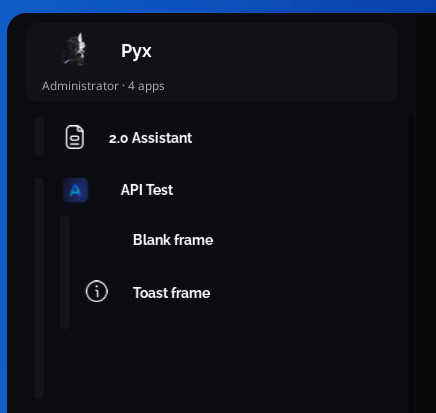
If we click both of them, they correctly come up blank. 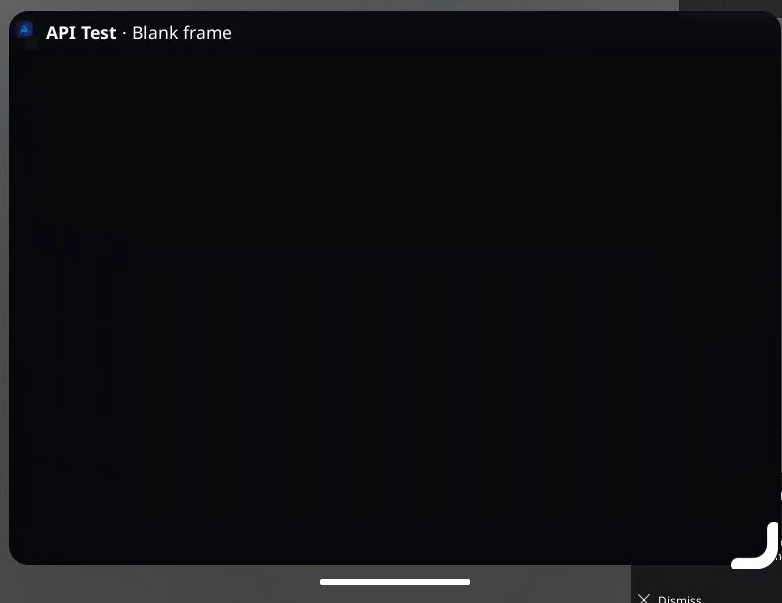
Toasts/Administer UIs
Now, what if you want to make a Toast? We have a full guide on user interfaces, so this portion is going to be minimal.
First, import the Frontend module:
local Frontend = require(Administer.Frontend)Now, we can revise our button config to have the call for "Toast frame":
Apps.AddAppDrawerButton({
    AppName = "API Test",
    Description = "Hello world!",
    Icon = "rbxassetid://116599744136879",
    ButtonID = "APITestButton",

    SubIcons = {
        {
            Name = "Blank frame",
            Icon = "rbxassetid://15029348417",
            Frame = Instance.new("Frame"),
            ButtonID = "BlankFrame"
        },
        {
            Name = "Toast frame",
            Icon = "rbxassetid://14919001252",
            Frame = Instance.new("Frame"),
            ButtonID = "ToastButton",
            Click = function()
                Frontend.Toast({
                    Text = "Button clicked!",
                    Subtext = "The Administer client API is easy and fun!",
                    Icon = "rbxassetid://16105499426",
                    Timeout = 10
                })
            end
        }
    }
})
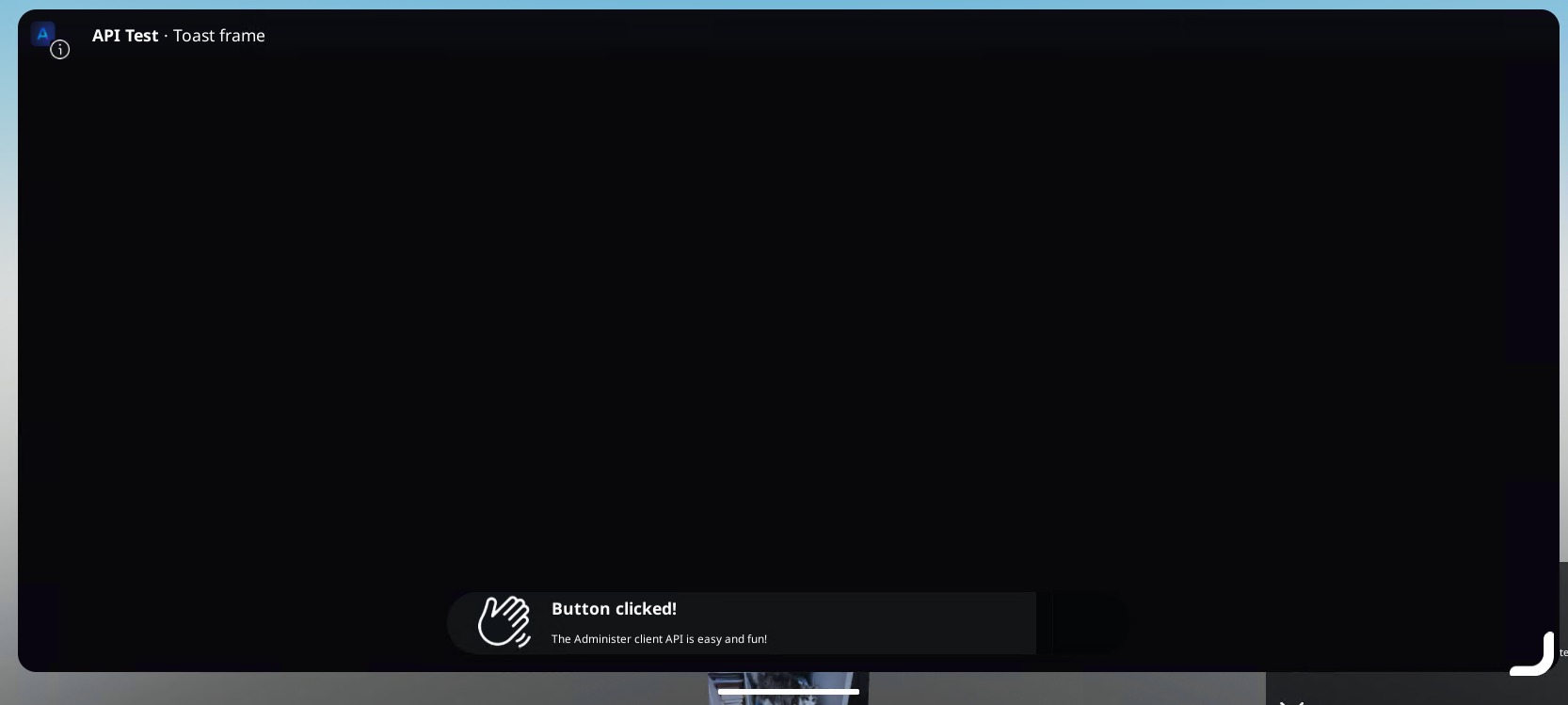
Now, when we run the script and click the "Toast frame" button, a toast appears!
Utilities
For a little bit extra, we can remove the hardcoded icons and strings by using Utilities APIs for translations and icons. Now, let's import the Utilities module:
local Utils = require(Administer.Utilities)Now let's revise the call once again, implementing translations and icons while renaming our sub-apps to "Marketplace" and "Themes":
DANGER
It is very bad practice to translate Button IDs. They are meant to stay static and should not change based on languages.
Apps.AddAppDrawerButton({
    AppName = Utils.Translate("Configuration.Marketplace.MainMarketplace.Content.Template.AppName"),
    Description = Utils.Translate("Configuration.InfoPage.VersionDetails.Credit"),
    Icon = Utils.Icon("administer"),
    ButtonID = "APITestButton",

    SubIcons = {
        {
            Name = Utilities.Translate("Configuration.Marketplace.Header.Head"),
            Icon = Utilities.Icon("shop"),
            Frame = Instance.new("Frame"),
            ButtonID = "BlankFrame"
        },
        {
            Name = Utilities.Translate("Configuration.Marketplace.Header.Themes"),
            Icon = Utilities.Icon("pencil-paintbrush"),
            Frame = Instance.new("Frame"),
            ButtonID = "ToastButton",
            Click = function()
                Frontend.Toast({
                    Text = "Button clicked!",
                    Subtext = "The Administer client API is easy and fun!",
                    Icon = "rbxassetid://16105499426",
                    Timeout = 10
                })
            end
        }
    }
})
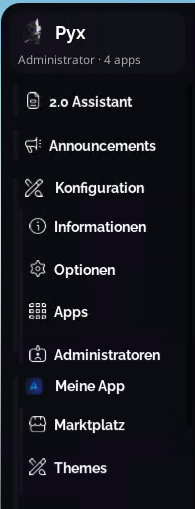
Now, when we join the panel, we get to see the new buttons in the user's selected language!
Congrats! You just made a new app using many Administer client modules. There's a lot more not covered in this guide, so we recommend you look through every module to find functions you might want to use or need to hook into.